Arknights: Endfield Guide
Arknights: Endfield Polish Subtitles Setup Guide
By: Kaption Editorial Published: Updated: 5 min read

Arknights: Endfield does not list Polish as an in-game language, but Kaption has displayed Polish dialogue subtitles over the game since November 2026.
Key points
- Arknights: Endfield does not list Polish for its interface, subtitles or audio on Steam. Kaption displays Polish dialogue in a separate window over the game.
- Set the game's text to English and use windowed or borderless-window mode. Kaption translates from the English text.
- Kaption covers conversations, story scenes and open-world radio calls. Dialogue response choices are not yet translated on screen.
- Press Ctrl+Shift+D to check the dialogue-reading frame. If it does not fit, use Ctrl+Shift+R to mark the area manually.
Does Arknights: Endfield offer Polish subtitles?
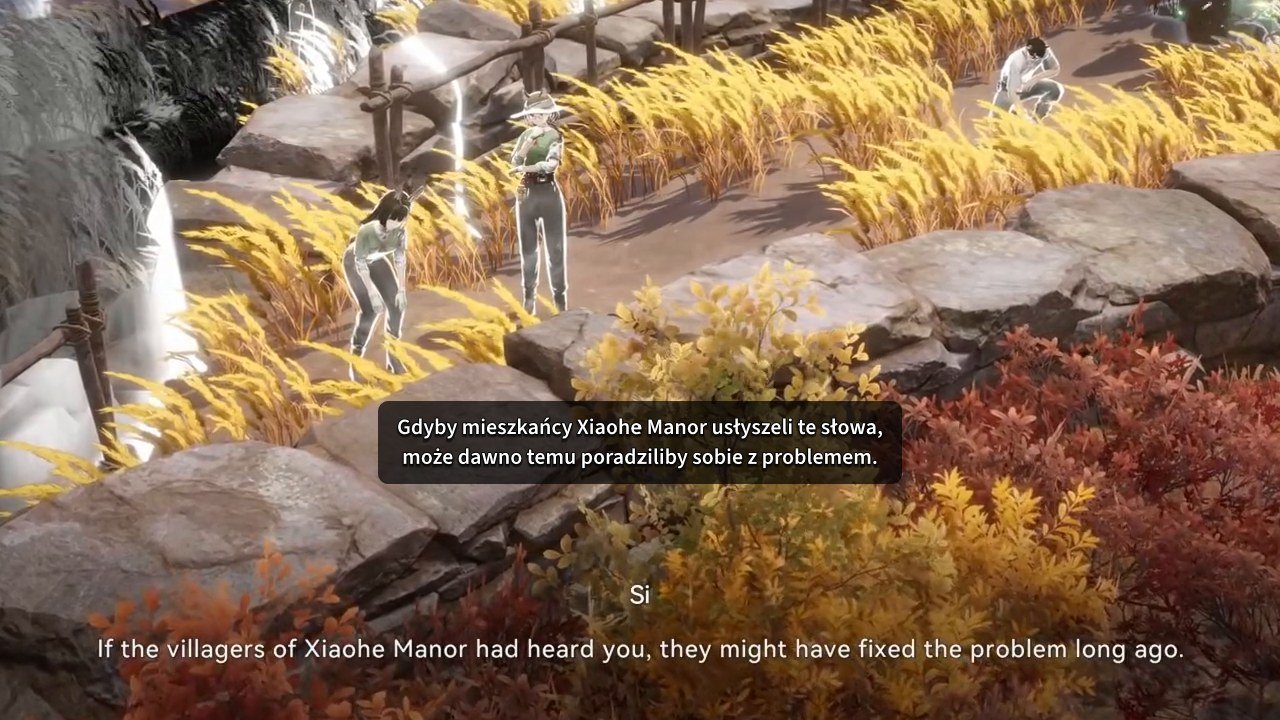
The Steam listing for Arknights: Endfield does not include Polish as an interface, subtitle or audio language. To read dialogue in Polish while playing, you can use Kaption's Arknights: Endfield translator, which puts subtitles in a separate window above the game. Those subtitles have been available since November 2026.
Kaption translates ordinary conversations, story scenes and open-world radio calls. It does not yet show translations for dialogue response choices because their screen positions have not been measured. You will need to read those choices in the game's English text.
What do you need to run Kaption?
- Windows: Kaption needs a 64-bit installation of Windows 10 or 11. Its first launch opens a setup window that takes you through the process.
- Processor: A processor from around 2013 or newer with AVX2 runs Kaption comfortably. Processors without SSE4.2 cannot run Kaption versions newer than 2.6.0.
- Account: You need a Google or Discord account to sign in. The sign-in takes place in a browser during setup.
- Internet connection: Kaption needs an internet connection to download subtitles. Translation runs locally during play after the subtitles have been downloaded.
- Installer: Download the installer from the Kaption home page and follow the Kaption setup guide. The installer includes the dependencies Kaption needs, so you do not need to install .NET separately.
How do you set up Polish subtitles?
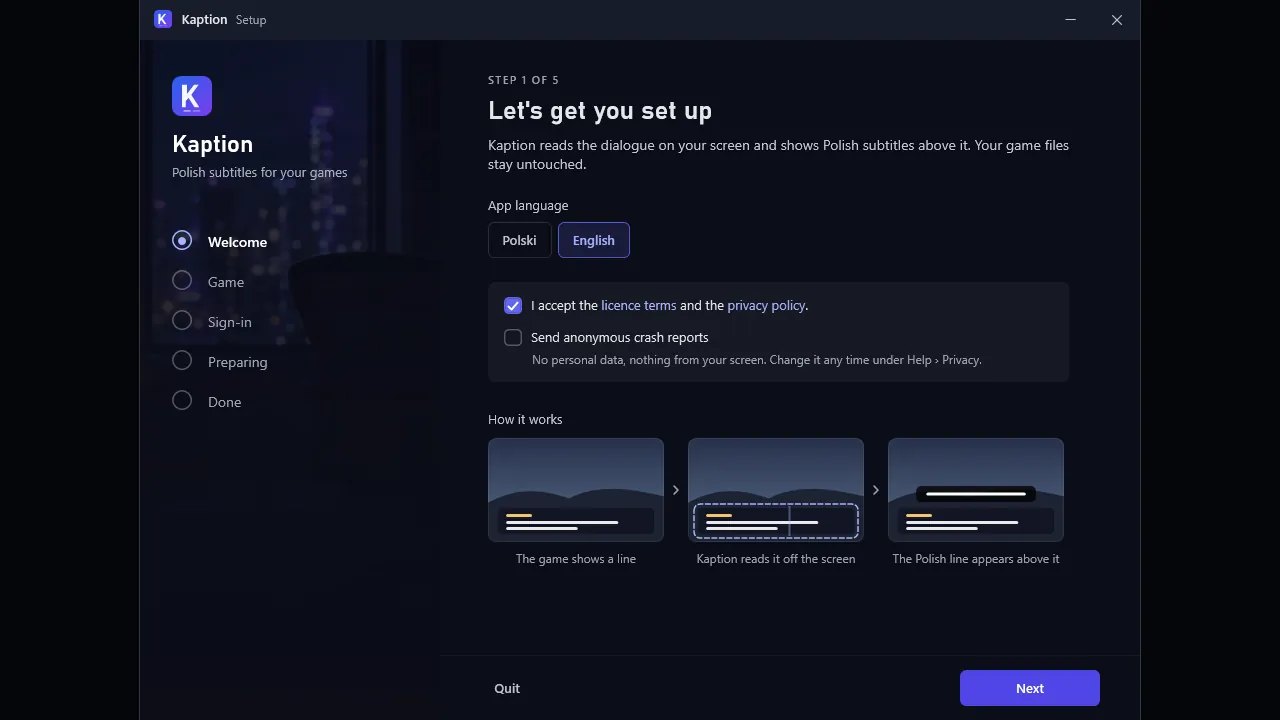
These instructions use Kaption's English interface, which you can select when the app first opens. The language of the game's text is a separate setting and must be English for Kaption to translate it.
- Set the game text to English. Run Arknights: Endfield in windowed or borderless-window mode rather than exclusive fullscreen, which can make the overlay flicker or disappear.
- Install and open Kaption. At the welcome screen, choose English for the app. Accept the licence terms and privacy policy to continue through the first-time setup.
- Sign in through your browser. Setup opens kaption.one, where you can use your Google or Discord account. After sign-in, the setup process advances automatically, so return to the Kaption window to continue.
- Select Arknights: Endfield. On the Game and subtitles page, select Arknights: Endfield. This tells Kaption which game's dialogue area and subtitles to use.
- Let Kaption detect the game. If Arknights: Endfield is running when you select it, Kaption detects it and previews the dialogue-reading area. If the game is not running yet, Kaption sets that area when the game starts.
- Wait for the subtitle download. Setup shows the download progress for the Polish subtitles for your selected game. Once setup is complete, you can check the reading frame over the game before continuing to play.
The game mode matters because exclusive fullscreen disables the Windows desktop compositor that Kaption uses for its overlay. Windowed and borderless-window modes let the separate subtitle window appear over the game.
How do you check and adjust the dialogue frame?
- Show the reading frame. Press Ctrl+Shift+D while the game is visible to display it for a few seconds. The dialogue frame is the area Kaption reads, and it needs to cover the speaker's name and the full dialogue text, which can occupy as many as three lines.
- Check the fit on your screen. The automatic frame has been tested on 16:9 and 21:9 screens. On a 16:10 or 4:3 monitor, you may need to adjust it manually if the dialogue falls outside the marked area.
- Mark the area if it does not fit. Press Ctrl+Shift+R and select the dialogue area manually. You can also use this control when playing in an unusual window.
- Choose whether to keep the exact area. Kaption can widen a frame that cuts off a long line, including one you marked yourself. Select Keep exactly my frame if you want Kaption to leave the width you selected unchanged.
- Return to automatic placement when needed. An automatically placed frame moves with the game window and adjusts when its resolution changes. A manually selected frame stays where you placed it, so check its fit again after moving or resizing the game. To return it to automatic control, click Set automatically on Game and subtitles.
- Move the subtitle window outside the frame. Drag the Polish subtitle window higher or lower so it does not overlap the area Kaption reads. If the two overlap, Kaption can read its own translation instead of just the game's dialogue.
How do subtitles start, stop and stay updated?
After setup, Kaption sets its reading frame and starts translating automatically when the game window is in front. Translation stops when the game closes. If you stop translation manually, Kaption waits for you to start it again rather than resuming on its own.
You can turn off automatic translation on Game and subtitles. If subtitles are not appearing, look for a small Kaption card over the game: it can explain why they are missing.
Closing the Kaption window sends it to the system tray and leaves translation running. To exit the application instead, right-click its tray icon and select Quit Kaption.
Kaption downloads the Polish translation pack at startup. After game patches, it automatically downloads updated packs, so the subtitle data can be updated separately from the game.
How does Kaption read dialogue, and which anti-cheat does the game use?
Kaption reads pixels from the selected area of the screen and displays the Polish dialogue in its own window. The reading frame marks the game text to read; the subtitle window displays the translation. Keeping the subtitle window outside that frame prevents it from being read as game dialogue.
The game's Steam listing reports a kernel-level system called ACE that combats cheating. Kaption's desktop application source code is public under the AGPL-3.0 licence.
Can you use the same Kaption account for other games?
The same Kaption application and account also support Genshin Impact, Honkai: Star Rail, Zenless Zone Zero and Wuthering Waves. Each game has a separate dialogue frame.
Sources
- Arknights: Endfield in Polish: Subtitles for the Dialogue | Kaption Kaption
- Arknights: Endfield po polsku: polskie napisy do dialogów | Kaption Kaption
- How to set up Kaption from zero | Kaption Kaption
- Jak ustawić Kaption od zera | Kaption Kaption
Pictures: Rubhen925 (YouTube)